Accept a payment
Securely accept payments online.
Build a payment form or use a prebuilt checkout page to start accepting online payments.
Not a developer?
Use Stripe’s no-code options or apps from our partners to get started and do more with your Stripe account—no code required. If you use a third-party platform to build and maintain a website, you can add Stripe payments with a plugin.
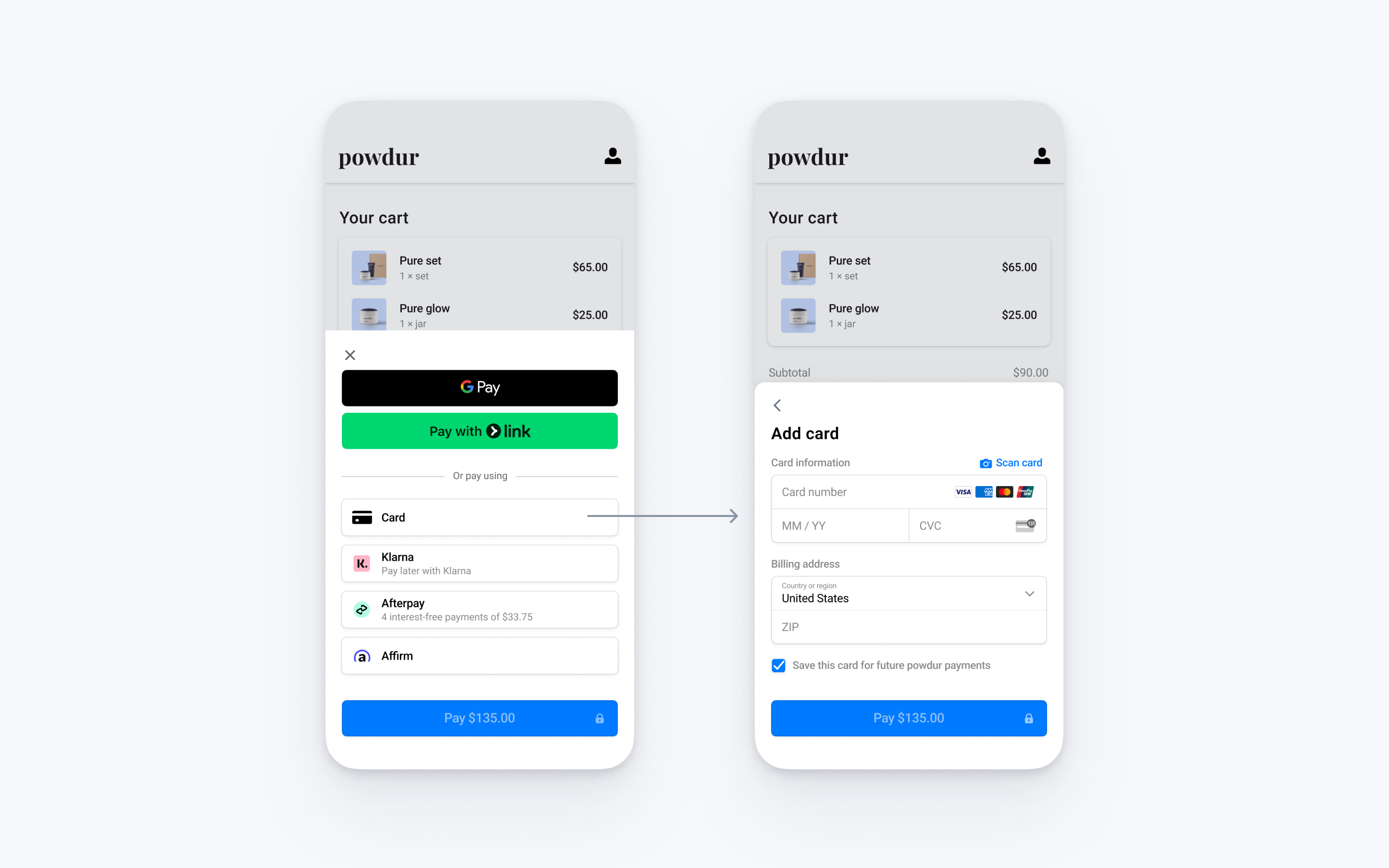
Integrate Stripe’s prebuilt payment UI into the checkout of your Android app with the PaymentSheet class.
Accounts v2 API support
The Payment Sheet doesn’t support customer-configured Accounts. It only supports Customer objects.
Set up Stripe
Server-sideClient-side
First, you need a Stripe account. Register now.
Server-side
This integration requires endpoints on your server that talk to the Stripe API. Use the official libraries for access to the Stripe API from your server:
Client-side
The Stripe Android SDK is open source and fully documented.
To install the SDK, add stripe-android to the dependencies block of your app/build.gradle file:
plugins {
    id("com.android.application")
}

android { ... }

dependencies {
  // ...

  // Stripe Android SDK
  implementation("com.stripe:stripe-android:23.5.0")
  // Include the financial connections SDK to support US bank account as a payment method
  implementation("com.stripe:financial-connections:23.5.0")
}
Note
For details on the latest SDK release and past versions, see the Releases page on GitHub. To receive notifications when a new release is published, watch releases for the repository.
Enable payment methods
View your payment methods settings and enable the payment methods you want to support. You need at least one payment method enabled to create a PaymentIntent.
By default, Stripe enables cards and other prevalent payment methods that can help you reach more customers, but we recommend turning on additional payment methods that are relevant for your business and customers. See Payment method support for product and payment method support, and our pricing page for fees.
Add an endpointServer-side
Note
To display the PaymentSheet before you create a PaymentIntent, see Collect payment details before creating an Intent.
This integration uses three Stripe API objects:
PaymentIntent: Stripe uses this to represent your intent to collect payment from a customer, tracking your charge attempts and payment state changes throughout the process.
(Optional) A customer-configured Account or a Customer object: To set up a payment method for future payments, you must attach it to a customer. Create an object to represent your customer when they create an account with your business. If your customer makes a payment as a guest, you can create an
AccountorCustomerobject before payment and associate it with your own internal representation of the customer’s account later.(Optional) CustomerSession: Information on the object that represents your customer is sensitive, and can’t be retrieved directly from an app. A
CustomerSessiongrants the SDK temporary scoped access to theAccountorCustomerand provides additional configuration options. See a complete list of configuration options.
Note
If you never save cards for customers and don’t allow returning customers to reuse saved cards, you can omit the Account or Customer object and the CustomerSession object from your integration.
For security reasons, your app can’t create these objects. Instead, add an endpoint on your server that:
- Retrieves the
AccountorCustomer, or creates a new one. - Creates a CustomerSession for the
AccountorCustomer. - Creates a
PaymentIntentwith the amount, currency, and either the customer_account or the customer. - Returns the
PaymentIntent’s client secret, theCustomerSession’sclient_, the ID of thesecret AccountorCustomer, and your publishable key to your app.
The payment methods shown to customers during the checkout process are also included on the PaymentIntent. You can let Stripe pull payment methods from your Dashboard settings or you can list them manually. Regardless of the option you choose, know that the currency passed in the PaymentIntent filters the payment methods shown to the customer. For example, if you pass eur on the PaymentIntent and have OXXO enabled in the Dashboard, OXXO won’t be shown to the customer because OXXO doesn’t support eur payments.
Unless your integration requires a code-based option for offering payment methods, Stripe recommends the automated option. This is because Stripe evaluates the currency, payment method restrictions, and other parameters to determine the list of supported payment methods. Payment methods that increase conversion and that are most relevant to the currency and customer’s location are prioritized.
You can manage payment methods from the Dashboard. Stripe handles the return of eligible payment methods based on factors such as the transaction’s amount, currency, and payment flow. The PaymentIntent is created using the payment methods you configured in the Dashboard. If you don’t want to use the Dashboard or if you want to specify payment methods manually, you can list them using the payment_ attribute.
# Create a Customer (use an existing Customer ID if this is a returning customer) curl https://api.stripe.com/v1/customers \ -u: \ -X "POST" \ -H "Stripe-Account: {{CONNECTED_ACCOUNT_ID}}" # Create an CustomerSession for the Customer curl https://api.stripe.com/v1/customer_sessions \ -usk_test_BQokikJOvBiI2HlWgH4olfQ2: \ -X "POST" \ -d "customer"="{{CUSTOMER_ID}}" \ -d "components[mobile_payment_element][enabled]"=true \ -d "components[mobile_payment_element][features][payment_method_save]"=enabled \ -d "components[mobile_payment_element][features][payment_method_redisplay]"=enabled \ -d "components[mobile_payment_element][features][payment_method_remove]"=enabled # Create a PaymentIntent curl https://api.stripe.com/v1/payment_intents \ -usk_test_BQokikJOvBiI2HlWgH4olfQ2: \ -X "POST" \ -d "customer"="{{CUSTOMER_ID}}" \ -d "amount"=1099 \ -d "currency"="eur" \ -d "automatic_payment_methods[enabled]"=true \sk_test_BQokikJOvBiI2HlWgH4olfQ2
Collect payment detailsClient-side
Before displaying the mobile Payment Element, your checkout page should:
- Show the products being purchased and the total amount
- Collect any required shipping information using the Address Element
- Include a checkout button to present Stripe’s UI
Initialize a PaymentSheet instance inside onCreate of your checkout Activity, passing a method to handle the result.
import androidx.compose.runtime.Composable
import androidx.compose.runtime.remember
import com.stripe.android.paymentsheet.PaymentSheet
import com.stripe.android.paymentsheet.PaymentSheetResult

@Composable
fun App() {
  val paymentSheet = remember { PaymentSheet.Builder(::onPaymentSheetResult) }.build()
}

private fun onPaymentSheetResult(paymentSheetResult: PaymentSheetResult) {
  // implemented in the next steps
}
Next, fetch the PaymentIntent client secret, Customer Session client secret, Customer ID, and publishable key from the endpoint you created in the previous step. Set the publishable key using PaymentConfiguration and store the others for use when you present the PaymentSheet.
import androidx.compose.runtime.Composable
import androidx.compose.runtime.remember
import androidx.compose.runtime.LaunchedEffect
import androidx.compose.runtime.getValue
import androidx.compose.runtime.mutableStateOf
import androidx.compose.runtime.setValue
import androidx.compose.ui.platform.LocalContext
import com.stripe.android.PaymentConfiguration
import com.stripe.android.paymentsheet.PaymentSheet
import com.stripe.android.paymentsheet.PaymentSheetResult

@Composable
fun App() {
  val paymentSheet = remember { PaymentSheet.Builder(::onPaymentSheetResult) }.build()
  val context = LocalContext.current
  var customerConfig by remember { mutableStateOf<PaymentSheet.CustomerConfiguration?>(null) }
  var paymentIntentClientSecret by remember { mutableStateOf<String?>(null) }

  LaunchedEffect(context) {
    // Make a request to your own server and retrieve payment configurations
    val networkResult = ...
    if (networkResult.isSuccess) {
        paymentIntentClientSecret = networkResult.paymentIntent
        customerConfig = PaymentSheet.CustomerConfiguration.createWithCustomerSession(
          id = networkResult.customer,
          clientSecret = networkResult.customerSessionClientSecret
        )
        PaymentConfiguration.init(context, networkResult.publishableKey)
    }
  }
}

private fun onPaymentSheetResult(paymentSheetResult: PaymentSheetResult) {
  // implemented in the next steps
}
When the customer taps your checkout button, call presentWithPaymentIntent to present the payment sheet. After the customer completes the payment, the sheet dismisses and the PaymentSheetResultCallback is called with a PaymentSheetResult.
import androidx.compose.material.Button
import androidx.compose.material.Text
import androidx.compose.runtime.Composable
import androidx.compose.runtime.LaunchedEffect
import androidx.compose.runtime.getValue
import androidx.compose.runtime.mutableStateOf
import androidx.compose.runtime.remember
import androidx.compose.runtime.setValue
import androidx.compose.ui.platform.LocalContext
import com.stripe.android.PaymentConfiguration
import com.stripe.android.paymentsheet.PaymentSheet
import com.stripe.android.paymentsheet.PaymentSheetResult

@Composable
fun App() {
  val paymentSheet = remember { PaymentSheet.Builder(::onPaymentSheetResult) }.build()
  val context = LocalContext.current
  var customerConfig by remember { mutableStateOf<PaymentSheet.CustomerConfiguration?>(null) }
  var paymentIntentClientSecret by remember { mutableStateOf<String?>(null) }

  LaunchedEffect(context) {
    // Make a request to your own server and retrieve payment configurations
    val networkResult = ...
    if (networkResult.isSuccess) {
        paymentIntentClientSecret = networkResult.paymentIntent
        customerConfig = PaymentSheet.CustomerConfiguration.createWithCustomerSession(
          id = networkResult.customer,
          clientSecret = networkResult.customerSessionClientSecret
        )
        PaymentConfiguration.init(context, networkResult.publishableKey)
    }
  }

  Button(
    onClick = {
      val currentConfig = customerConfig
      val currentClientSecret = paymentIntentClientSecret

      if (currentConfig != null && currentClientSecret != null) {
        presentPaymentSheet(paymentSheet, currentConfig, currentClientSecret)
      }
    }
  ) {
    Text("Checkout")
  }
}

private fun presentPaymentSheet(
  paymentSheet: PaymentSheet,
  customerConfig: PaymentSheet.CustomerConfiguration,
  paymentIntentClientSecret: String
) {
  paymentSheet.presentWithPaymentIntent(
    paymentIntentClientSecret,
    PaymentSheet.Configuration.Builder(merchantDisplayName = "My merchant name")
      .customer(customerConfig)
      // Set `allowsDelayedPaymentMethods` to true if your business handles
      // delayed notification payment methods like US bank accounts.
      .allowsDelayedPaymentMethods(true)
      .build()
  )
}

private fun onPaymentSheetResult(paymentSheetResult: PaymentSheetResult) {
  when(paymentSheetResult) {
    is PaymentSheetResult.Canceled -> {
      print("Canceled")
    }
    is PaymentSheetResult.Failed -> {
      print("Error: ${paymentSheetResult.error}")
    }
    is PaymentSheetResult.Completed -> {
      // Display for example, an order confirmation screen
      print("Completed")
    }
  }
}
Setting allowsDelayedPaymentMethods to true allows delayed notification payment methods like US bank accounts. For these payment methods, the final payment status isn’t known when the PaymentSheet completes, and instead succeeds or fails later. If you support these types of payment methods, inform the customer their order is confirmed and only fulfill their order (for example, ship their product) when the payment is successful.
Handle post-payment eventsServer-side
Stripe sends a payment_intent.succeeded event when the payment completes. Use the Dashboard webhook tool or follow the webhook guide to receive these events and run actions, such as sending an order confirmation email to your customer, logging the sale in a database, or starting a shipping workflow.
Listen for these events rather than waiting on a callback from the client. On the client, the customer could close the browser window or quit the app before the callback executes, and malicious clients could manipulate the response. Setting up your integration to listen for asynchronous events is what enables you to accept different types of payment methods with a single integration.
In addition to handling the payment_ event, we recommend handling these other events when collecting payments with the Payment Element:
| Event | Description | Action |
|---|---|---|
| payment_intent.succeeded | Sent when a customer successfully completes a payment. | Send the customer an order confirmation and fulfill their order. |
| payment_intent.processing | Sent when a customer successfully initiates a payment, but the payment has yet to complete. This event is most commonly sent when the customer initiates a bank debit. It’s followed by either a payment_ or payment_ event in the future. |
Send the customer an order confirmation that indicates their payment is pending. For digital goods, you might want to fulfill the order before waiting for payment to complete. |
| payment_intent.payment_failed | Sent when a customer attempts a payment, but the payment fails. | If a payment transitions from processing to payment_, offer the customer another attempt to pay. |
Test the integration
| Card number | Scenario | How to test |
|---|---|---|
| The card payment succeeds and doesn’t require authentication. | Fill out the credit card form using the credit card number with any expiration, CVC, and postal code. | |
| The card payment requires authentication. | Fill out the credit card form using the credit card number with any expiration, CVC, and postal code. | |
The card is declined with a decline code like insufficient_. |
Fill out the credit card form using the credit card number with any expiration, CVC, and postal code. | |
| The UnionPay card has a variable length of 13-19 digits. | Fill out the credit card form using the credit card number with any expiration, CVC, and postal code. |
See Testing for additional information to test your integration.