Build an in-app payments integration
Use Stripe’s In-app Payments to build a customized payments integration and checkout flows for your iOS, Android, and React Native apps. This overview helps you plan your integration.
US apps selling digital goods
Android apps in the US that sell digital goods can process payments in-app using Stripe. If you sell digital goods on iOS, see how to implement an app-to-web flow using Stripe Checkout in Sell in-app digital goods and subscriptions.
With Stripe In-App Payments, you can:
- Dynamically display 40+ payment methods, including Apple Pay, Google Pay, and Link, as well as saved payment methods.
- Collect payment information like credit card numbers and billing details.
- Complete the payment, handling authentication like 3DS2 or redirecting to a banking app.
Choose a UI
Choose from three different UI integrations depending on your preferred UX and design needs.
| Payment Sheet | Flow Controller | Payment Element | |
|---|---|---|---|
| Integration effort | Low code |
Some code |
Some code |
| Display payment methods | In a sheet | In a sheet | In an embeddable view |
| Collect payment details | In a sheet | In a sheet | In a sheet |
| Complete payment | In a sheet | You control when to confirm in your UI | You control when to confirm in your UI |
| Layout flexibility | Fixed sheet presentation | Fixed sheet for selection, flexible confirmation | Embed payment methods anywhere in your app |
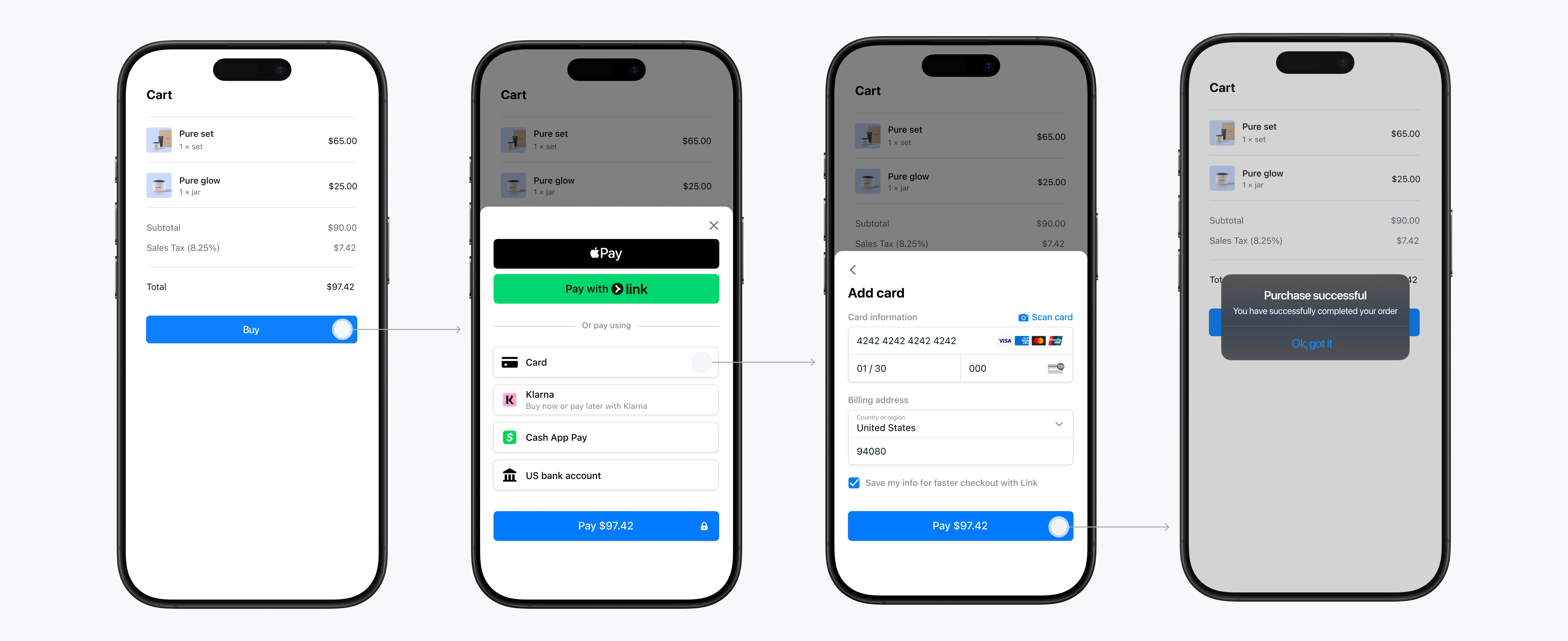

This integration displays payment methods, collects payment information, and completes payment all in a single prebuilt sheet. We recommend using this UI to take payments in your app for most users.
You can customize more than 50 aspects of the appearance, including colors and fonts, with the Appearance API guide.
Try the demo: Scan the QR code or use this link to download an interactive demo app.
Best for…
- Adding in‑app payments quickly with minimal code.
- A checkout where the customer taps a single “Buy” button and completes payment in one step.
Consider another option for…
- Collecting a payment method first and confirming payment separately in your own UI. To do this, use Flow Controller.
- Embedding payment methods directly into your own screens instead of a sheet. To do this, use Payment Element.
Choose an API
Stripe’s In-App Payments integration uses either PaymentIntents or SetupIntents.
Accept a payment
| ⠀ | |
|---|---|
| API | PaymentIntent |
Description |
Collect payment and charge the customer immediately. Our UI displays a “Save my info” checkbox, allowing customers to save their payment method for future checkouts. Learn more about saved payment methods. |
| Supported payment methods | Both single-use and reusable |
| Examples |
|
| Get started | Accept a payment with Payment Sheet |
Set up a payment method
| ⠀ | |
|---|---|
| API | SetupIntent |
| Description | Collect and save a payment method for future payments without charging the customer. |
| Supported payment methods | Reusable payment methods only |
| Examples |
|
| Get started | Set up a payment method with Payment Sheet |
Accept and set up a payment
| ⠀ | |
|---|---|
| API | PaymentIntent with setup_future_usage |
Description |
Charge the customer now and save their payment method for future use by configuring your PaymentIntent to save the payment method. You can require all payment methods to be saved by configuring |
| Supported payment methods | Both single-use and reusable |
| Examples |
|
| Get started | Accept and set up a payment with Payment Sheet |
Saved payment methods
Stripe’s In-App Payments supports saving, displaying, and managing saved card, US Bank account, and SEPA Debit payment methods. Consent collection is handled automatically, ensuring global compliance.

Access saved payment methods in Payment Sheet
The CustomerSessions API provides additional control over:
- When to show or hide the save consent box
- When to show or hide the saved payment methods
- Allowing buyers to remove saved payment methods
- Preventing buyers from removing the last saved payment method
Features and availability
-
UI
In-app Payments
-
UI customization
Extensive, using the Appearance API
-
Payment methods 1
-
SDK support
iOS, Android, and React Native
-
One-time and recurring payments
Yes
-
Fraud protection
-
Global payments
1Wallet payment methods require registering your domain.