Fraud prevention rules
Use fraud prevention rules to help protect your business.
Stripe Radar provides built-in rules to help detect and guard against fraud risk across all supported payment methods. All transactions are screened using Radar’s default rules.
Radar for Fraud Teams and Radar for Platforms let you use the Dashboard to create custom rules based on your business logic. For example, you can:
- Request 3D Secure (3DS) for all payments that support it and are made by a new customer
- Allow all payments from your call center’s IP address
- Block payments made from a location or card issued outside your country
- Review all payments greater than 1,000 USD that were made with a prepaid card
- Review and automatically pause payouts on accounts that have a high dispute rate (with Radar for Platforms)
Caution
EU businesses might be affected by the Geo-blocking Regulation and its prohibitions on blocking payments from customers based in EU member states.
Built-in rules
The following rules are available by default, unless flagged as custom rules, which are only available if you use Radar for Fraud Teams or Radar for Platforms.
Block fraud automatically
Alternatively, you can use Radar risk controls to block fraud automatically. The risk controls use early fraud warnings to evaluate and block the highest risk payments.
AI risk checks
All Radar offerings provide a set of default rules based on the judgments of our AI models.
| Radar rule | Description |
|---|---|
Block if :risk_level: = Deprecated
|
The rule blocks and won’t process payments with a high risk of fraud. This rule is enabled by default for all Radar users. |
Review if :risk_level: = |
The default behavior for Radar for Fraud Teams and Radar for Platforms is to place payments into review that we suspect have an elevated risk of fraud. |
Radar for Platforms has additional account-level AI models that are incorporated through two default rules:
Review if :account_risk_level: = 'highest'
Review if :account_risk_level: = 'elevated'
We calculate account-level risk using KYC information, transactions, geographic risk factors, and behavior patterns.
Traditional card checks
A payment can still succeed even when the CVC or address (AVS) check fails because issuers evaluate numerous risk factors when deciding to authorize a payment. A card issuer might still consider a payment that fails CVC or postal code verification legitimate, and therefore approve it.
You can enable Radar’s built-in rules to block certain payments that the card issuer approved. When enabled, these rules also affect attaching a card to a customer, and creating a customer, if you create the card and customer together.
Effective December 17, 2024, the Dashboard shows these rules to new customers and existing customers who haven’t used the legacy CVC or AVS rules.
| Radar rule | Description |
|---|---|
Block if CVC verification fails based on risk score |
Enable this rule to block payments that fail a card issuer’s CVC verification check, unless Stripe evaluates it as low risk. This rule doesn’t block payments where the customer doesn’t provide the CVC number because they, for example, use a wallet, or their card issuer doesn’t support its verification. |
Block if Postal code verification fails based on risk score |
Enable this rule to block payments that fail a card issuer’s postal code verification check, unless Stripe evaluates it as low risk. This rule doesn’t block payments where the customer doesn’t provide the postal code, or their card issuer doesn’t support its verification. |
Built-in rules to request 3D Secure
3D Secure (3DS) prompts customers to complete an additional authentication step before they can complete the purchase flow. If 3DS authenticates a payment, the liability for any fraud-related disputes for that payment typically shifts from the seller to the issuer. This means that in most cases, the seller isn’t responsible for fraud costs on 3DS authenticated payments.
Stripe automatically handles soft decline codes indicating that 3DS is required by issuers. We also trigger 3DS when necessary, adhering to regulations, such as the Strong Customer Authentication (SCA) mandated by the PSD2. Disabling Radar doesn’t prevent 3DS from being triggered in cases where it’s necessary.
Stripe supports three legacy built-in rules to request 3DS when using Radar with Payment Intents or SetupIntents:
| Radar rule | Description |
|---|---|
Request 3D Secure if 3D Secure is recommended for card Deprecated
|
Enable this rule to prompt the customer for 3DS authentication based on risk. |
Request 3D Secure if 3D Secure is supported for card Deprecated
|
Enable this rule to prompt the customer for 3DS authentication, as long as their card supports it. |
Request 3D Secure if 3D Secure is required for card Deprecated
|
Enable this rule to prompt the customer for 3DS authentication, if the card historically required 3DS. Regardless of this rules, Stripe automatically triggers 3DS:
|
Because 3DS requires your customer to go through an additional layer of authentication, indiscriminate use of 3DS might lower conversion rates.
Requesting 3DS doesn’t necessarily mean the issuer actually performs 3DS. Learn more about possible outcomes.
Custom rules to request 3D Secure and act on specific outcomes
After attempting 3DS authentication, if you have Radar for Fraud Teams or Radar for Platforms, you can evaluate the result in allow, block, or review rules.
See below for the most important attributes for custom Radar rules.
| Attribute | Description |
|---|---|
is_3d_secure |
This is true if the card is supported, 3DS was attempted by the issuer, and the customer didn’t fail authentication. We generally recommend using this in block rules. |
is_3d_secure_authenticated |
This is true if 3DS was attempted by the issuer and the customer successfully completed a full authentication. Using this attribute in a block rule excludes legitimate transactions that might have an SCA exemption or don’t fall into a clear failure or successful authentication, such as processing errors. |
has_liability_shift |
This is true if Stripe expects liability shift to cover the payment. This might not always be the same as 3DS, for example Apple Pay in certain regions. |
For custom rules, we recommend keeping Request 3DS and Block rules aligned depending on your risk appetite. However, don’t block payments where 3DS isn’t supported, such as from some wallets.
See below for some examples that show how to achieve this for different use cases.
Request 3D Secure based on Radar risk level
You want to use Radar to request 3DS on all payments, based on the risk level and that are above a certain amount.
| Radar rule | Description |
|---|---|
Request 3D Secure if :risk_level: != |
This rule checks for the Radar risk level before requesting 3DS on all payments with an elevated or high risk level above a certain amount. |
In this case, without a block rule, cards or wallets that don’t support 3DS aren’t blocked. 3DS attempts that failed authentication don’t continue to charge authorization.
Always require 3D Secure based on Radar risk level
You want to use Radar to request 3DS on all payments, based on an elevated or high risk level and that are above a certain amount. You don’t want to support cards that don’t support 3DS.
| Radar rule | Description |
|---|---|
Request 3D Secure if :risk_level: != |
This rule checks for the Radar risk level before requesting 3DS on all charges with an elevated or high risk level above a certain amount. |
Block if not :is_3d_secure: and :risk_level: != |
This rule blocks elevated or high-risk payments above a certain amount that don’t have a 3DS flow. This rule accepts legitimate payments that might have an SCA exemption or don’t have a clear failure or successful authentication, such as attempt_. It accepts off-session payments, such as recurring subscription charges, and wallets, such as Apple Pay or Google Pay to succeed. |
Only accept fully 3D Secure authenticated payments if 3D Secure is supported
You rely on Stripe activating 3DS when necessary in cases such as Strong Customer Authentication (SCA), but don’t want to accept edge cases, such as processing errors.
| Radar rule | Description |
|---|---|
Block if :is_3d_secure: and not :is_3d_secure_authenticated: |
This rule blocks payments where the card is enrolled in 3DS, and 3DS was attempted but the user didn’t successfully authenticate. Cards that don’t support 3DS, SCA exemptions, off-session payments (such as recurring subscription charges), and wallets (such as Apple Pay or Google Pay) are accepted. |
Request 3D Secure based on metadata
You want to use Radar to request 3DS on all payments with a custom metadata attribute.
| Radar rule | Description |
|---|---|
Request 3D Secure if ::foo:: = |
This rule checks for a metadata condition and then requests 3DS. To check customer metadata, replace ::foo:: = 'bar' with a value like ::customer:trusted:: = 'false'. |
In this case, without a block rule, we don’t block cards or wallets that don’t support 3DS. 3DS attempts that failed authentication don’t continue to charge authorization.
Always require 3D Secure based on metadata
You want to use Radar to request 3DS on all payments with a custom metadata attribute and block cards that don’t support it.
| Radar rule | Description |
|---|---|
Request 3D Secure if ::foo:: = |
This rule checks for a metadata condition and then requests 3DS. To check customer metadata, replace ::foo:: = 'bar' with a value like ::customer:trusted:: = 'false'. |
Block if ::foo:: = |
This rule blocks payments that don’t have a 3DS flow for charges with a custom metadata attribute. This rule accepts legitimate payments that might have an SCA exemption or don’t have a clear failure or successful authentication, such as attempt_. It accepts off-session payments, such as recurring subscription charges, and wallets, such as Apple Pay or Google Pay to succeed. |
Request 3D Secure for all new cards and review if 3D Secure wasn’t supported
You want to use Radar to request 3DS on all new cards and manually review payments from cards that don’t support 3DS.
| Radar rule | Description |
|---|---|
Request 3D Secure if is_missing(:seconds_since_card_first_seen:) |
This rule requests 3DS on all cards that haven’t been used on your account. To reduce user friction, you can add a condition to only request 3DS if :risk_level: != . |
Request 3D Secure if :is_new_card_on_customer: |
As an alternative to the rule above, this rule requests 3DS on all cards that are newly used on a customer-configured Account or Customer. To reduce user friction, you can add a condition to only request 3DS if :risk_level: != . |
Review if not :is_3d_secure and not:is_off_session: and :digital_wallet: != |
This rule marks payments where 3DS is expected, but isn’t supported for manual review. It ignores off-session payments, such as recurring subscription charges, and wallets, such as Apple Pay or Google Pay. Payments marked for review continue to authorization and can give additional risk factors, such as issuer CVC checks. |
In this case, without a block rule, we don’t block cards or wallets that don’t support 3DS. 3DS attempts that failed authentication don’t continue to charge authorization.
Always require 3D Secure for certain issuer countries
You want to use Radar to request 3DS on all payments from card issuers originating from countries on a custom list and block the cards that don’t support it.
| Radar rule | Description |
|---|---|
Request 3D Secure if :card_country: in @enforce_3ds_list |
This rule checks for a condition based on the card issuer’s country of origin and compares them to a custom list. If they match, we request 3DS. |
Block if :card_country: in @enforce_3ds_list and not :is_3d_secure and not :is_off_session: and :digital_wallet: != |
This rule blocks payments that don’t have a 3DS flow and that originate from countries on the custom list. This rule accepts legitimate payments that might have an SCA exemption or don’t have a clear failure or successful authentication, such as attempt_. It accepts off-session payments, such as recurring subscription charges, and wallets, such as Apple Pay or Google Pay to succeed. |
Always require 3D Secure based on Radar risk level and review edge cases
You want to use Radar to request 3DS on all payments based on the risk level, and block cards that don’t support 3DS, but manually review edge cases.
| Radar rule | Description |
|---|---|
Request 3D Secure if :risk_level: != |
This rule checks for the Radar risk level before requesting 3DS on all elevated or high-risk payments above a certain amount. |
Block if not :is_3d_secure: and :risk_level: != |
This rule blocks elevated or high-risk payments above a certain amount and that don’t have a 3DS flow. This rule accepts legitimate payments that might have an SCA exemption. It accepts off-session payments, such as recurring subscription charges, and wallets, such as Apple Pay or Google Pay to succeed. |
Review if not :is_3d_secure_authenticated: and :risk_level: != |
This rule marks payments that used 3DS, but didn’t result in a fully authenticated flow, for manual review. This reviews edge cases, such as attempt_, and also marks legitimate payments despite SCA exemptions. Because review rules are evaluated after block rules, we block cards that don’t support 3DS. |
Create rules
The Stripe default rules can block a substantial number of fraudulent payments. Businesses that need more control over which payments they want to review, allow, or block can write custom rules through Radar for Fraud Teams. Platforms can write custom rules through Radar for Platforms to calibrate payments risk for their platform and connected accounts and apply account-specific rules.
Consider the following when deciding whether to enable custom rules:
- If you see certain features or user behaviors as more risky (for example, using a disposable email).
- If you want to implement rules based on the payment method (for example, automatically blocking SEPA Direct Debit payments that exceed a certain risk score).
- If you want to implement rules based on payment amounts or perceived risk level (for example, automatically review if the payment is over 500 USD, automatically allow if the payment is under 5 USD).
- If your existing disputed and refunded payments share any common patterns (for example, similar amounts, card types, or countries).
- If you have existing rules you want to migrate to Stripe. The Stripe AI model might already cover many of these rules, and you can check how our system performs for your business before customizing it.
- If you want to automatically raise reviews and optionally pause payouts on accounts. This applies to platforms only.
Create effective rules
While rules can help you automate your existing workflows, they can also negatively affect your business if used incorrectly. For example, a rule can automatically allow a large number of elevated or high-risk payments or block a large number of legitimate payments, if it isn’t set up properly.
Remember the following when setting up rules:
- By default, rules apply to all supported payment methods unless you define a specific payment method in the rule predicate using the
payment_attribute.method_ type - Rules only apply to future payments and don’t apply to any that you already processed.
- Request 3DS rules only apply when using Stripe Checkout, Payment Intents, or Setup Intents, and are evaluated before review, block, and allow rules.
- Before implementing any block rule to block all payments or pause payouts for accounts that meet its criteria, consider whether you’d rather review the payments or accounts first.
- Implement any allow rules minimally, because they override the Stripe default rules, along with any other custom rules that match the same criteria.
- You can create a maximum of 200 transaction rules and 100 account rules.
Construct transaction rules
You can add and manage rules from the Radar Rules page in the Dashboard.
To add a transaction rule
- Click + Add rule.
- Select the rule type.
- In the rule editor, construct a rule using the syntax
{action} if {attribute} {operator} {value}where:-
{action}: is how Radar responds when the rule criteria is met. This value is pre-populated based on the rule type you selected. -
{attribute}: is the element of the payment to evaluate, such as the amount or card type. Begin typing with:to open a list of valid attributes. You can also evaluate your custom metadata by enclosing it in double colons, for example,::product_.sku:: -
{operator}: is how to compare the attribute to the value, such as=,>,!=, and so on. -
{value}: is the value of the attribute to evaluate.
-
- Click Test rule.
- Correct any detected validation errors, if necessary.
- On the Review new rule page, review how this rule performs against your recent payments to confirm whether you want to enable it. If the rule might impact payments from more than one payment method, use the filter to view rule performance by payment method (for example, ACH or Cards).
- Click Add rule to apply this rule to all future transactions.
Use Radar Assistant
The Stripe rule editor has a built-in LLM assistant that constructs a Radar transaction rule from a natural language prompt. Learn more about Stripe AI services.
Training data consent
By using Radar Assistant you agree that Stripe can log and use your chat entries to train and improve the Radar Assistant capabilities. If you don’t want to have your chat entries used for this purpose, write rules manually.
To use Radar Assistant
- On the Radar Rules page, click + Add rule.
- Select the rule type.
- In the rule editor, click Radar Assistant.
- In the message field, enter your rule request. You might ask to:
- Review payments where the card and IP countries are different.
- Block Discover card payments of more than $1000.
- Allow payments from stripe.com email addresses.
- When the Assistant returns its suggestion, you can either enter an additional command to make adjustments to the rule, or you can click Test rule to see how the rule performs against your recent transaction history.
- When you’re satisfied with the rule, click Add rule to enable it for all future transactions.
Share your feedback
Help us continue to improve Radar Assistant. Click Share feedback and tell us how the Assistant performed for you and what we can do to improve. We welcome all opinions, whether it’s about the accuracy of the suggestion, the UI, or any other aspect of your interaction.
Review rules
Stripe still processes payments normally when they match a review rule’s criteria. We add these payments to your review queue so your team can review them more closely. Setting up a rule that’s too broad can result in too many payments placed in your review queue, slowing down your customers and burdening your review team.
The Stripe rule testing interface runs a simulation on the last 6 months of charges to determine how many legitimate, fraudulent, and blocked payments would have been affected by the rule, had it been implemented. While testing a rule and examining the last 6 months, make sure that:
- Overall volume of payments is low. Reviewing these payments shouldn’t create a burden for your team.
- Human reviewers add value. A human reviewer can generally identify an elevated or high-risk payment with greater confidence than the automated system.
- The rule results in a mix of successful and refunded or disputed payments. This means that additional inspection on these types of payments can help separate legitimate payments from fraudulent payments.
The following is an example of how to improve a review rule created by a business that wants to review pre-paid credit cards.
| Original rule | Improved rule |
|---|---|
Review if :card_funding: = |
Review if :is_disposable_email: and :card_funding: = |
| This rule is too broad and results in too many reviews. | This rule is more focused and results in a smaller number of reviews. |
Block rules
You can use block rules to block payments that you’re confident are fraudulent, or based on any restrictions your business has in place (such as blocking payments from prepaid cards). If you’re not sure how to apply block rules, we recommend using a review rule to place payments in review. After reviewing these payments for potential false positives, you can confirm whether you want to create a block rule instead.
Block rules only impact fraudulent and successful payments, because already-blocked payments are unaffected. While testing a rule, make sure that you:
- Keep false positives as low as possible. During testing, Stripe identifies the number of successful and disputed payments that would’ve been matched by the rule. A good block rule results in significantly more fraudulent payments blocked than legitimate payments.
- Minimize unnecessary rules. If your rule appears to perform well but is already covered by an existing rule, your newer rule might not be necessary. Similarly, if the results during testing appear to be mixed, consider setting up a review rule instead so you can gather more information about those types of payments.
The following is an example of how to improve a block rule created by a business that has a high level fraud from payments outside the US.
| Original rule | Improved rule |
|---|---|
Block if :card_country: != |
Block if :card_country: != |
| This rule is too broad and blocks a high number of legitimate payments. | This rule is more focused and results in a smaller number of reviews. |
Allow rules
Allow rules override all of your other rules, so use them with caution. Many businesses might not need to implement allow rules. If you have concerns that an allow rule could let through even a small number of fraudulent payments, consider adjustments to further restrict these rules before implementing them.
Allow rules apply to all new payments as soon as you create the rule. This includes any payments that are similar to previously blocked payments. While testing a rule, make sure that you:
- Examine the number of previously blocked payments that would have been allowed. Allow rules override all other rules and Stripe’s risk assessment. When testing a new allow rule, all payments shown would have been allowed if this rule were active. This can include payments that had been blocked or disputed, impacting your future dispute rates.
-
Continue to block any high-risk payments. Block high-risk payments by adding the following to any allow rule:
and :risk_level: !='highest' - Evaluate a history of legitimate transactions at your business. You can analyze connections between your own customers to allow a higher volume of transactions based on a history of legitimate purchases. This helps you block fewer payments from customers that have a proven history at your business. To do this, review the attributes list and look for attributes that include the word “customer.”
The following is an example of how to improve an allow rule for a business that generally (but not always) sees legitimate payments coming from customers in the UK:
| Original rule | Improved rule |
|---|---|
Allow if :ip_country: = |
Allow if :ip_country: = |
| This rule is too broad and allows some fraudulent payments. | This rule is more focused and results in allowing a smaller number of fraudulent payments. |
Maintain your rules
As your business continues to grow, make sure your rules continue to reflect the types of customers that you want to do business with. The following are some best practices to keep rules current for the state of your business.
Regularly monitor rules to make sure they’re still effective
Rule metrics
Fraud patterns constantly change, so we provide metrics to show how these rules are performing. These metrics vary depending on the type of rule, because the rule types perform different actions.
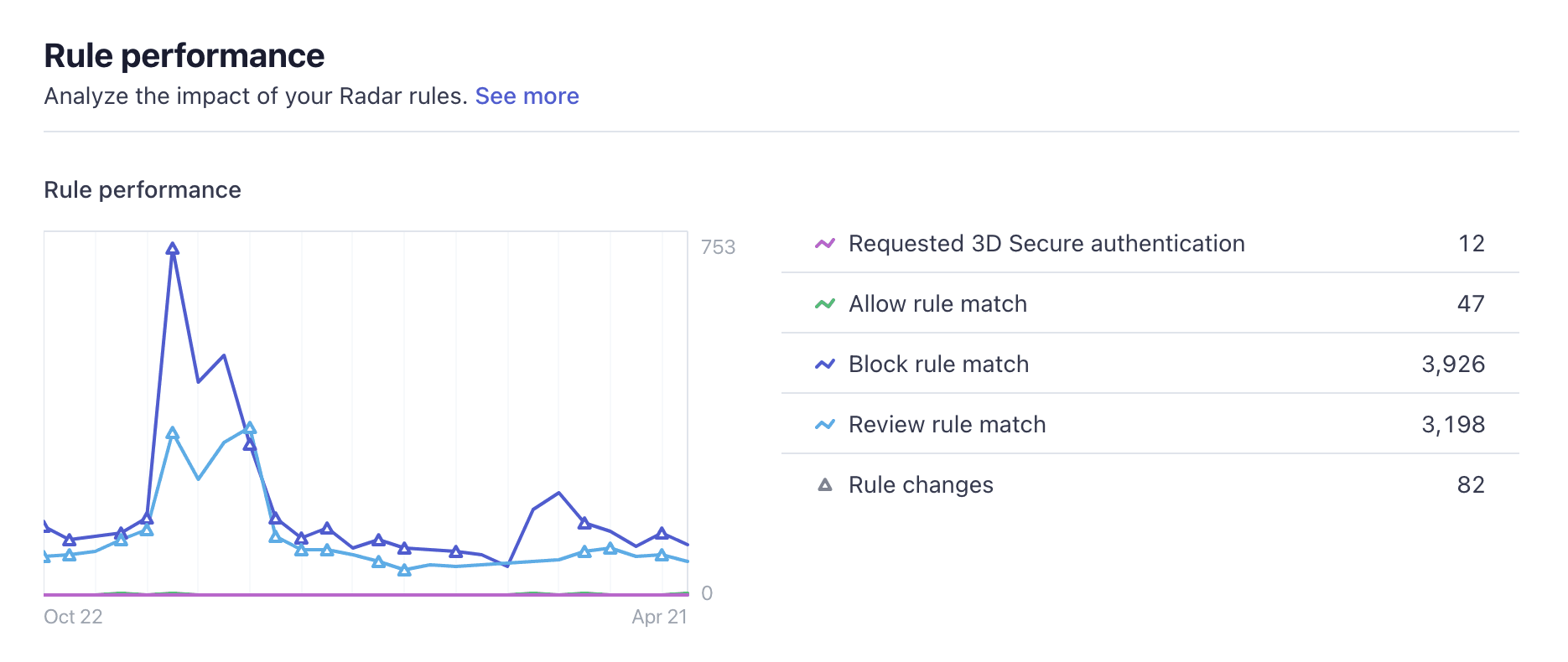
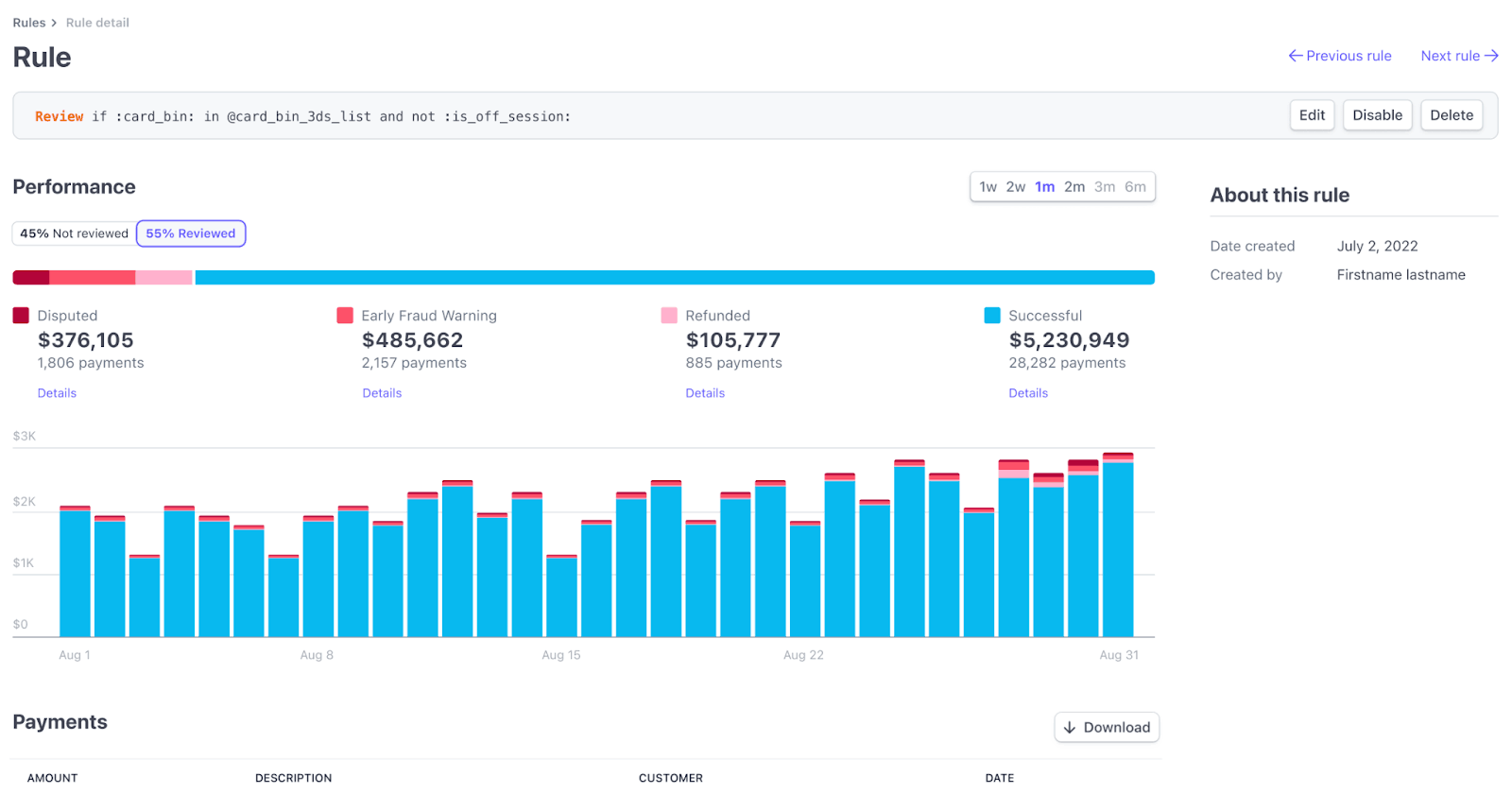
Use the rule performance chart to understand the behavior of your Radar rules. Look for unexpected spikes or declines in the number of payments matching your rules, such as allow rules letting through too many payments or block rules blocking too many. These spikes might indicate a change in the types of payments your business receives or that might necessitate updates to the rules.
Color-coded lines track the number of payments that match 3DS rules, allow rules, block rules, and review rules. Updated rules are displayed as triangular symbols on the graph lines, and can help you compare the impact of a change before and after you make it.
Click the overflow menu () to view additional commands for any rule, including Disable, Enable, Edit or Delete.
You can also use our reporting products, Sigma and Data Pipelines, to query disputes and fraud data, including rule decisions and attributes for each individual payment.
Evaluate rule effectiveness
You can find information about the effectiveness of your rules and see how many payments each rule has affected. You can also view and download a filtered list of every payment that a rule has been applied to.
Review the sample questions in the following table to help you decide if you need to make changes to any rules or remove them entirely.
| Rule type | Evaluate | Actions to consider |
|---|---|---|
| General | If this rule no longer matches any payments. | Remove the rule. |
| If this rule has anomalous behavior, such as allowing more payments than in previous time periods. | Manually review payments that match this rule to determine if this is the behavior you want. | |
| 3DS | If the 3DS completion rate is high, but the number of disputes or early fraud warnings is low. | Remove the rule because you might be causing friction for your users. |
| If fraud is high for transactions that pass 3DS. | Consider modifying your 3DS rule into a block rule to prevent these users from passing frictionless flow (controlled by issuers) or committing first-party fraud. | |
| If the conversion rate for 3DS is low. | This might be an effective rule because it might be mostly blocking fraudsters. Consider manually investigating matched payments to make sure your good users aren’t abandoning because of additional friction. | |
| Allow | If the number of disputes, early fraud warnings, refunds, or failed payments is high. | Remove the rule that allows bad payments through. |
| Block | If the number of blocks is going down, but your fraud is still steady or increasing. | Modify your rule because it might no longer be effective. |
| If the number of blocks is going up, but your fraud is still steady or increasing. | Modify your rule because it might block good users. | |
| If the number of blocks is going up, and your fraud is going down. | This might be an effective rule. Consider manually reviewing a few transactions to make sure you’re not blocking too many good users. | |
| Manual Review | If the percentage of payments that get reviewed is low. | Make the rule more restrictive because it might be too broad. |
| If the number of successful or approved payments is high. | Remove the manual review rule entirely, or write an allow rule to target those payments. | |
| If the number of refunds or disputes and early fraud warnings are high. | Convert to a block rule. |
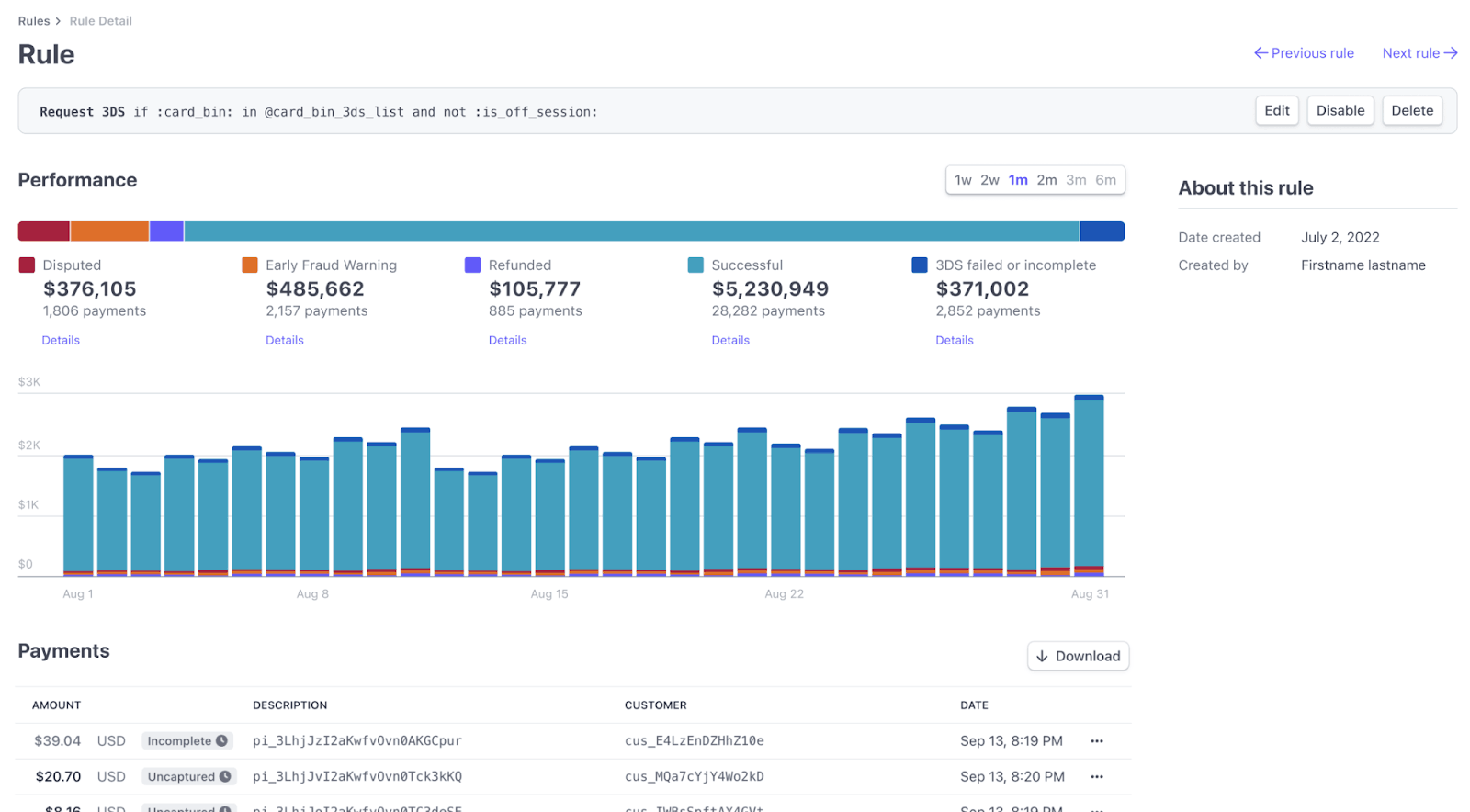
Request 3DS rules
For request 3DS rules, we display 3DS Requested, which is the number of times a rule triggered a 3DS request. You can click a 3DS rule to see the following metrics.
Allow rules
If you use Radar for Fraud Teams, you can view the following allow rules:
- Allowed payments: The total number of payments allowed by your rules.
- Volume, allowed payments: The total amount, in your local currency, associated with payments allowed by your rules.
- Risk score: The corresponding risk outcomes assigned by our AI models to the set of payments allowed by your rules.
- Disputes from overrides: The total number of allowed payments that were disputed.
- Volume, disputes from overrides: The total amount, in your local currency, associated with disputes from allowed payments.
Note
If the disputed metrics are high, you might consider writing more narrowly targeted allow rules, to prevent allowing payments through that are eventually disputed.
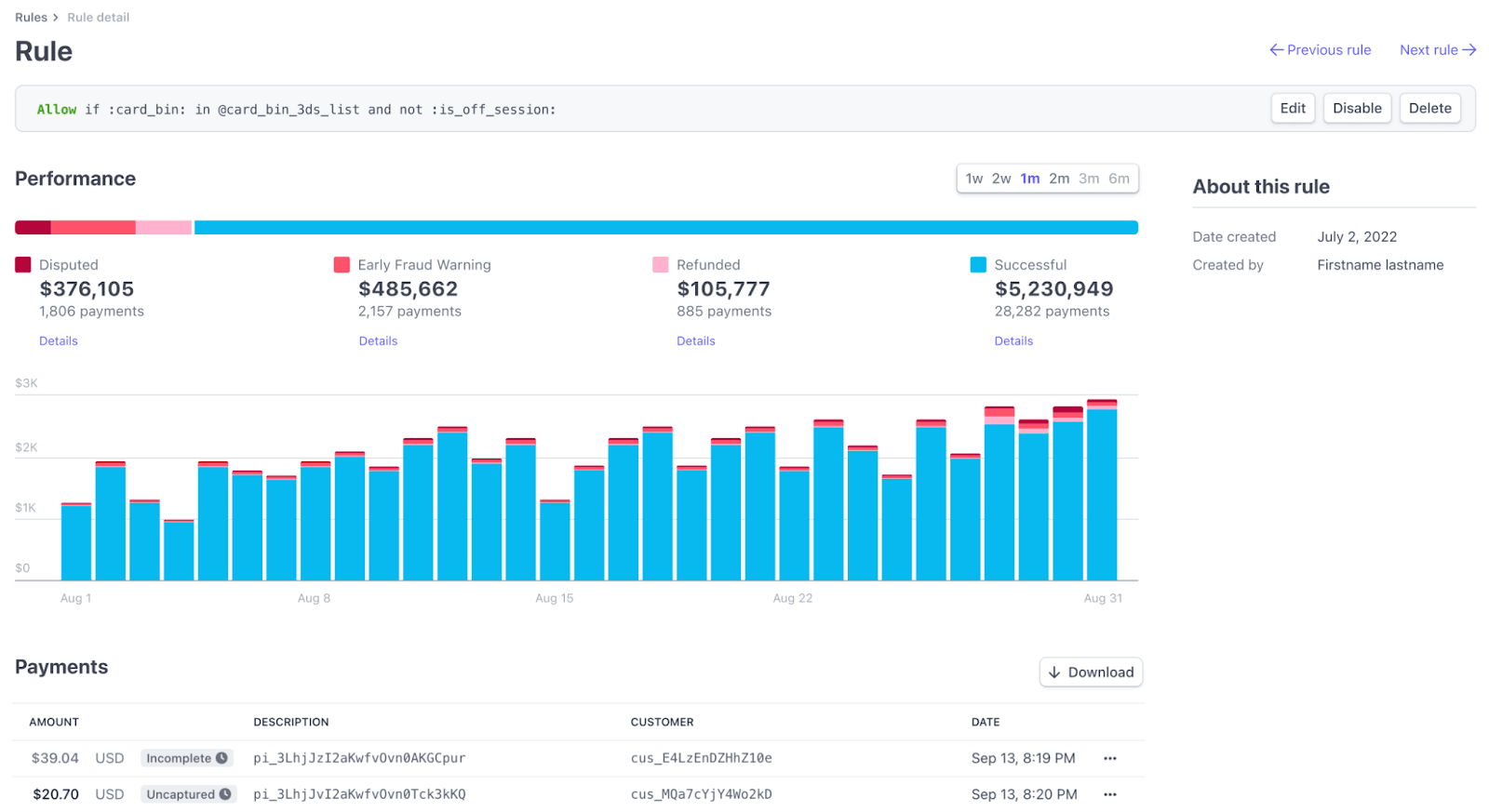
Select an allow rule to see the following metrics:
Block rules
You can view the following block rules:
- Blocked payments: The total number of payments blocked by your rules.
- Volume, blocked payments: The total amount, in your local currency, associated with payments blocked by your rules.
If you use Radar for Fraud Teams, you can also view the following:
- Risk score: The corresponding risk outcomes assigned by our AI models to the set of payments allowed by your rules.
- Est. false positive rate: The estimated percentage of non-fraudulent payments that were blocked for both your block rules as a set and by individual rules. These estimates are made using the estimated false positive rates of the corresponding AI risk scores, which we calculate with experiments across the Stripe network.
- Est. fraudulent payments prevented: The estimated number of fraudulent payments that your block rules prevented. Stripe uses AI risk scores, calculated by analyzing millions of transactions across the Stripe network, to predict payments with a high probability of being disputed or declined because of fraud, and estimate which of those payments were successfully blocked by your rules.
Note
If the estimated false positive rate metrics are high, you might consider writing more narrowly targeted block rules or reviewing which payments are covered by the rule, to avoid blocking as many non-fraudulent payments.
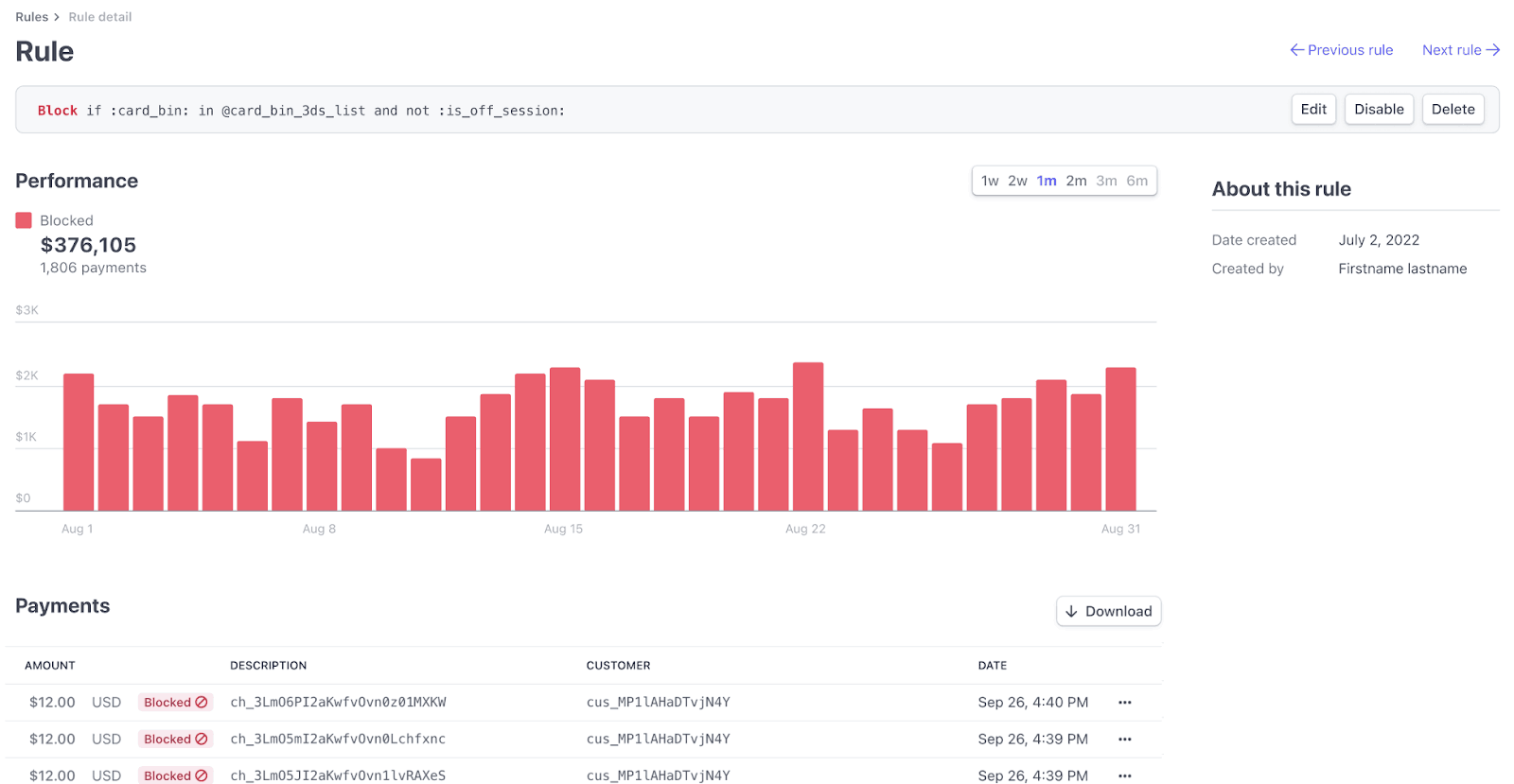
Select a block rule to see the following metrics:
Review rules
If you use Radar for Fraud Teams, you can view the following review rules:
- Payments sent to review: The total number of payments sent to manual review by your rules.
- Volume, approved reviews: The total amount, in your local currency, associated with approved payment reviews.
- Refund rate: The percentage of reviews that were refunded.
- Disputes from approved reviews: The total number of payments approved in your review, but were ultimately disputed.
- Volume, disputes from approved reviews: The total amount, in your local currency, associated with disputes from approved payment reviews.
Select a review rule to see the following metrics:
View rule history
You can view a history of changes made to your Radar rules. This audit trail helps you understand when a rule was created, edited, enabled, or disabled, and by which user on your team.
To see the activity for a specific rule, go to the Rules tab on the Radar page and click the name of the rule.
The Rule activity log shows a summary of all modifications. Click the specific event to see more details, such as the complete rule predicate before and after the update. You can only see rule changes for the past 180 days.
Regularly reviewing this activity can help you correlate rule modifications with their impact on your business.
Regularly monitor your manual review queue
If your review queue is too large to manage, make sure you have the correct rules in place. If most reviews result in a refund because of fraud, consider additional rules to block payments. If most payments are approved, consider making your review rules more focused.
Analyze your disputed and refunded payments
Disputes are inherently linked to fraud, so the more you do to reduce fraud, the lower your dispute rate. Check to see if disputed payments share any similar characteristics (for example, from the same locations or of similar amounts). You can also perform this type of investigation by looking at payments that were refunded during a review. If you see trends, you can test and create the appropriate rules. If any payments appear to be fraudulent, refund and report them as fraud to avoid potential disputes.
You can also use our reporting products, Sigma and Data Pipeline, to query disputes and fraud data.
You can respond to any incoming disputes using the Dashboard or through the API, and our dispute documentation includes some suggestions on how to present a well documented case.
Anticipate large changes to your business that might impact your fraud rate
If you’re planning any major product releases or changes to your service (for example, a new, high-value product or expanding your service into new countries), you might want to monitor these payments in the beginning. For these kinds of changes, it’s a good practice to set up some review rules so you can examine any new payments. Reviewing these payments and identifying patterns can help you set up new rules to help protect your business from fraud.
Rules support multiple payment methods
By default, Radar rules screen payments for cards, ACH, and SEPA Direct Debits for most users. We support the high risk block rule for all of these payment methods. If you use Radar for Fraud Teams or Radar for Platforms, we also support custom rules using the :payment_method_type: attribute to write rules that apply only to specific payment methods, for example: Block if :payment_method_type: = . Learn more about supported attributes.'us_
Construct account rules
With Radar for Platforms, you can also add and manage account rules from the Rules tab on the Radar page in the Dashboard.
To add an account rule
- Click + Add rule.
- Select the rule type: Review or Payout pause (which raises a review AND payout pause).
- In the rule editor, construct a rule using the syntax
{action} if {attribute} {operator} {value}where:-
{action}: is how Radar responds when the rule criteria is met. This value is pre-populated based on the rule type you selected. -
{attribute}: is the element of the payment to evaluate, such as the amount or card type. Begin typing with:to open a list of valid attributes. -
{operator}: is how to compare the attribute to the value, such as=,>,!=, and so on. -
{value}: is the value of the attribute to evaluate.
-
- Click Test rule.
- Correct any detected validation errors, if necessary.
- On the Review new rule page, view the accounts that would match this rule today to confirm whether you want to enable it.
- Click Activate rule to apply this rule to all existing and future accounts.
Testing account-level rules takes longer than transaction testing, however we recommend testing to avoid unintentionally raising accounts for review or pausing automatic payouts. First, test raising accounts for review behavior. Then, test automatic payout pauses after you’re confident the rule impacts accounts as expected.